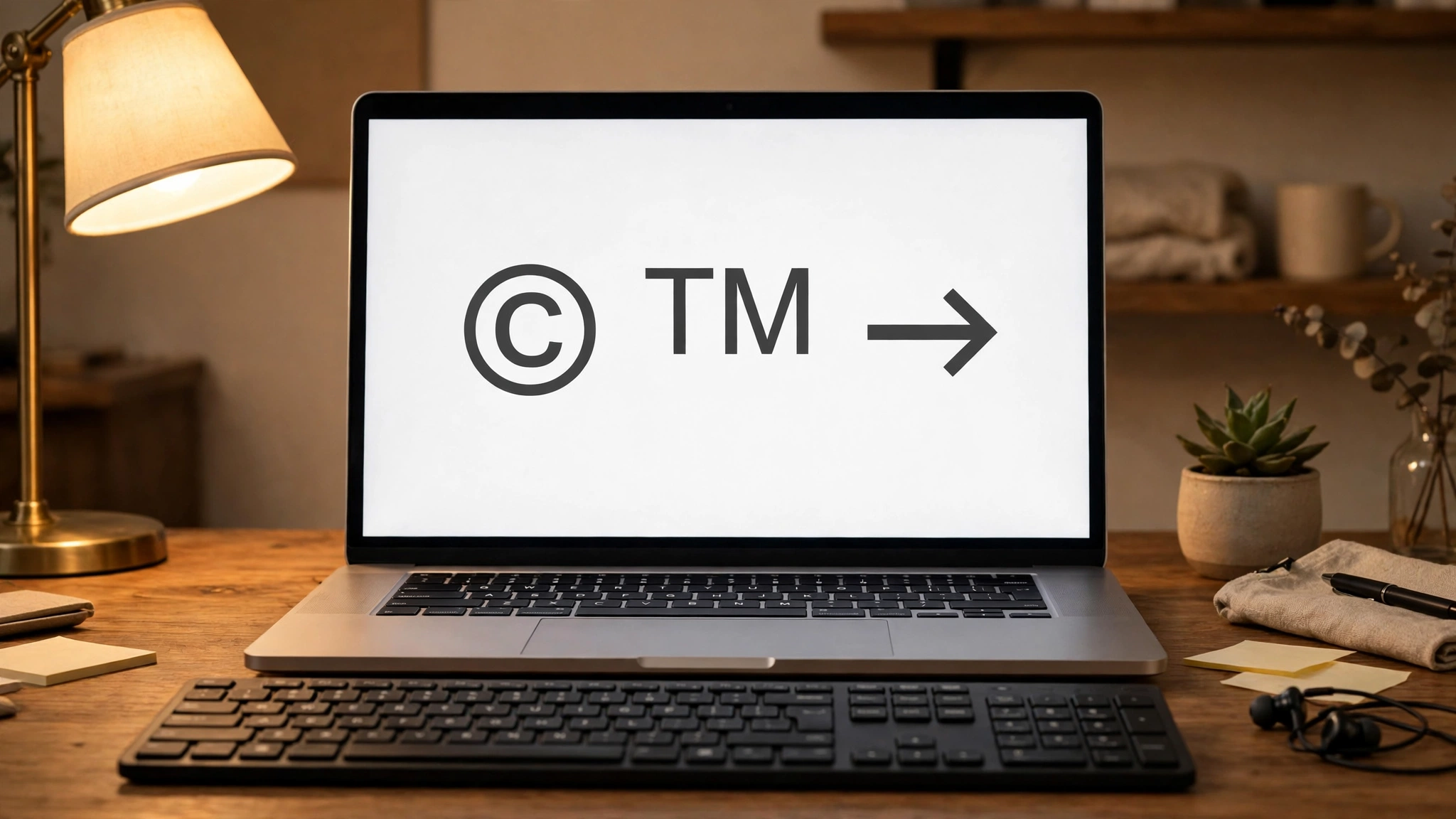
Copy and Paste Symbols: The Complete Guide to Finding and Using Special Characters
Copy and paste symbols are the quickest way to add special characters to your writing when your keyboard does not have the symbol you need. Whether you want a degree sign, a check mark, a heart, an arrow, or a currency sign, you do not need to memorise codes or install anything. You simply find the symbol, copy it, and paste it where you want it to appear. It works in documents, emails, messages, social media posts, and almost any app that accepts text.
The reason they are so popular is that they remove friction. Keyboards are built for letters and numbers, not for the hundreds of extra characters people actually use. A writer needs an em dash, a student needs a square root sign, a shop owner needs a currency symbol, and a social media user wants a decorative star. Instead of hunting through menus, you grab the character from a symbol collection and drop it straight into your text. This guide explains what these symbols are, where to find them safely, how to use them on every device, and which ones are worth knowing.
What Are Copy and Paste Symbols?
These symbols are special characters that you insert into text by copying them from a source and pasting them into your document, message, or post. They include punctuation marks your keyboard hides, such as the em dash and the ellipsis, mathematical signs such as plus-minus and infinity, currency symbols from around the world, arrows, stars, hearts, check marks, and many decorative characters. They are ordinary text characters, which means they behave like letters: you can change their size, colour, and font, and they move with the text when you edit it.
The symbols come from a large international character set that computers use to represent text. Every letter, number, punctuation mark, and symbol on your screen is stored as a character from that set, and your keyboard only shows a small part of it. When you copy one, you are simply borrowing a character from that larger set and placing it into your own text. That is also why the same symbol can look slightly different on different devices: each device draws the character in its own font, but the character itself stays the same.
There is an important difference between a symbol and an emoji. Symbols are text characters that match the font and size of your surrounding words, while emoji are small pictures with colour built in. Symbols suit formal writing; emoji suit casual messages where you want extra expression.
How to Use Copy and Paste Symbols on Any Device
The process is the same everywhere: select the symbol, copy it, move to where you want it, and paste. On a computer, you select the character with your mouse or keyboard, copy it with the usual keyboard shortcut or the right-click menu, then paste it into your document. On a phone or tablet, you long-press the symbol to select it, tap copy, then long-press in the text field where you want it and tap paste. Once you have done it a couple of times, the whole thing takes seconds.
Most computers also have a built-in character tool that makes copy and paste symbols even easier to use. On Windows, the character map lets you browse symbols by category, click the one you want, and copy it to your clipboard. On a Mac, the character viewer does the same job and can be opened from the menu bar or with a keyboard shortcut. Both tools let you search for a symbol by name, which is handy when you know what you want but not what it looks like. Phones have a similar option: the symbols section of the on-screen keyboard holds many common characters, and switching to it is usually a single tap.
If you use the same symbols often, it pays to keep a small personal list. Save your most-used characters in a note on your phone or in a document on your computer, and you will never have to search for them again. Some people keep a note with their favourite arrows, stars, and check marks, while others keep currency symbols and accented letters they use for names. A personal collection turns this from a one-off trick into a genuine time saver. If you spend a lot of time typing, a typing test can also help you build speed and accuracy for everything else you write, and our guide to the words per minute test explains how to measure your typing speed.
The Most Useful Copy and Paste Symbols by Category
Not all symbols are equally useful, and knowing the main categories helps you find the right character quickly. Punctuation symbols are the ones most people reach for first: the em dash for a strong break in a sentence, the en dash for ranges, the ellipsis for a trailing thought, and curly quotation marks for polished writing. These small details make a document look professional, and they are almost impossible to type directly on a standard keyboard.
Mathematical and scientific symbols come next. The plus-minus sign, the multiplication sign, the division sign, the square root sign, and the infinity symbol cover most everyday needs, from homework and worksheets to recipes and technical notes. Greek letters such as alpha, beta, and pi are also common in science and maths writing, and they are far easier to paste in than to describe in words.
Currency symbols are useful for anyone who writes about money, travel, or shopping. The dollar, euro, pound, and yen signs are on many keyboards, but symbols for other currencies are not, and copying them in is the simplest solution. Arrows point readers in the right direction and show steps in a process, while stars, hearts, and check marks add a little visual interest to bios, lists, and headings.
Where to Find Copy and Paste Symbols Safely
The safest sources are the character tools built into your own device, because they never require you to visit a website or install anything. Your computer’s character map or character viewer, and the symbols keyboard on your phone, are always available and completely safe. They also show you the symbol in your own system font, so what you see is close to what you will get.
Symbol websites are the other common source: simple pages where you click a character to copy it. Check that the page looks clean and does not ask you to download anything or sign up. A legitimate symbol page only needs to show characters and let you click them. If a site shows pop-ups or pushes you to download a file, close it and use your device’s built-in tools instead.
Common Problems With Copy and Paste Symbols and How to Fix Them
The most common problem is a symbol showing up as a blank box or a question mark. This happens when the font or app you are pasting into does not include that character. The fix is usually simple: try a different symbol from the same family, or switch the text to a common font that supports a wide range of characters. Decorative and unusual symbols are the most likely to fail, while standard punctuation and currency symbols almost always work.
Copy and Paste Symbols for Work, School, and Social Media
In work documents, they add polish without effort. An em dash or a proper quotation mark makes a report look professionally typeset, a check mark makes a task list easy to scan, and an arrow makes a process diagram clearer. Used sparingly, symbols help readers navigate your document; used too heavily, they become a distraction. One or two symbols per section is usually enough, and the text should still read clearly if every symbol were removed.
On social media, symbols add personality to a bio, a caption, or a post. Stars, hearts, arrows, and dividers can organise a bio into readable lines and draw attention to a link. The key is restraint: a bio full of symbols is hard to read, while a few well-chosen ones make it stand out. Symbols can also dress up video captions and titles, and our guide to the best video editing software covers tools that add text overlays to your clips.
Frequently Asked Questions About Copy and Paste Symbols
Where can I find copy and paste symbols for free?
They are free on every major device. Use the character map on Windows, the character viewer on a Mac, or the symbols keyboard on your phone, all of which cost nothing and need no installation. Free symbol websites also exist, but stick to clean pages that only ask you to click a character, and never download anything to get a symbol.
Why does a symbol show as a box after I paste it?
A symbol shows as a box when the font or app you pasted into does not support that character. Try a more common symbol from the same group, or change the text to a widely used font. Decorative and rare characters are the most likely to fail, while standard punctuation, arrows, and currency symbols work almost everywhere.
Can I use copy and paste symbols in any app?
They work in almost any app that accepts text, including word processors, email, messaging apps, and social media. The symbol is an ordinary text character, so it behaves like a letter. Some older apps or very basic text fields may not display unusual symbols, so test the character in the app before using it in something important.
Are copy and paste symbols the same as emoji?
No. Symbols are text characters that match the font and size of your surrounding text, while emoji are colourful picture characters. A heart symbol is plain text; a heart emoji has colour built in. Symbols are usually better for formal writing and documents, while emoji suit casual messages where you want extra expression.
How do I copy and paste symbols on my phone?
Long-press the symbol to select it, tap copy, then go to the text field where you want it, long-press there, and tap paste. Many phones also have a symbols section on the keyboard, reached by tapping the symbols key, which holds common punctuation, currency signs, and mathematical characters without needing a website.
Will a copied symbol look the same on every device?
Not always. Each device draws a character in its own font, so a symbol can look slightly different on a phone, a tablet, and a computer. The character itself stays the same, so the meaning is preserved, but the exact style may vary. If the precise look matters, check how the symbol appears on the device your audience will use.
Copy and paste symbols are a small skill with an outsized payoff. Once you know where to find them and how to paste them cleanly, you can add the exact character you need to any piece of writing in seconds, on any device, without memorising codes or installing software. Keep a short list of the symbols you use most, favour the built-in tools on your device, and use symbols sparingly so they sharpen your writing instead of cluttering it. The right character, used at the right moment, is often the difference between text that looks ordinary and text that looks finished.